Please report any error in this document or suggestions for improvement to: energydataDK@dtu.dk.
To help you better understand this guide and use Energydata.dk effectively, it’s useful to be familiar with a few key terms.
These terms are listed in Table 1 below.
| Term | Meaning |
|---|---|
| Datastream | A datastream is like a channel where data from a sensor, measurement device or similar is received. All observations at the channel are a tuple with a time stamp for when the observation was measured and the measurement itself, i.e., the “value”. All timestamps in energydata.dk are in UTC time. Each datastream is described by a number of mandatory tags (metadata) that qualify the data. |
| Dataset | A dataset is a collection of related datastreams. |
| Owner | The owner of a dataset is the user who has the rights to manage it. |
| Group | A collection of users is called a group, they all share the same privileges, i.e., which datasets they can access and what privileges they have for the dataset (read / write access). |
| Administrator (group) | An administrator is a group member with additional privileges. Administrators can manage group membership by adding or removing users. They can grant access to datasets by assigning licenses to the group. However, administrators can only grant access to datasets they own. |
| Member (group) | A user can be a member of a group and, through that membership, gain access to the datasets associated with the group. |
| License | Read or write access to a dataset is controlled by a license that is assigned to the group. This license defines the level of access the group has to the dataset. |
| Public | A privilege that makes it possible to view a dataset, but not read or write the data into it. |
| Open Dataset | "A public dataset that provides free access for energydata.dk users for reading the data. |
| Read | A read privilege allows users to view a datastream in the preview window, export the data to a CSV file, or access the data via the API for reading purposes. |
| Write | A privilege that makes it possible to insert data to a datastream via an API. |
| Topic | A unique label for a datastream. The topic is used when inserting or requesting data for a datastream via an API. |
| Tag | A tag is a descriptive metadata label used to characterize a datastream, helping to define its purpose or category and making it easier to search, filter, or organize. |
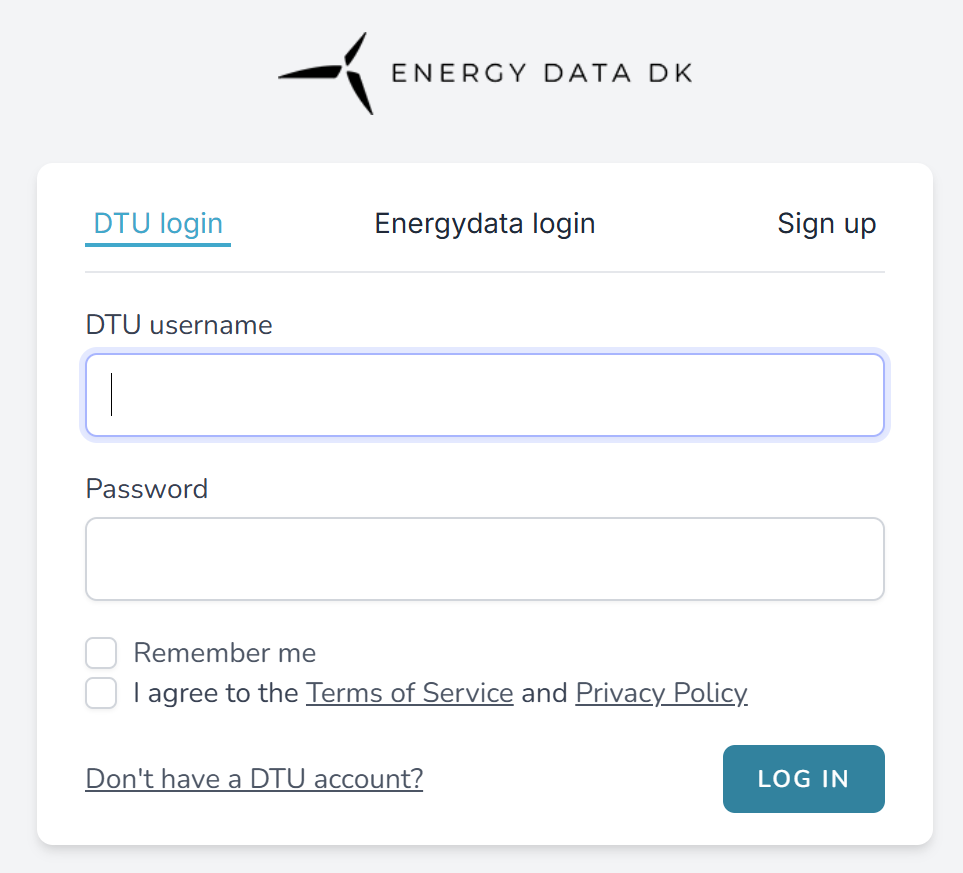
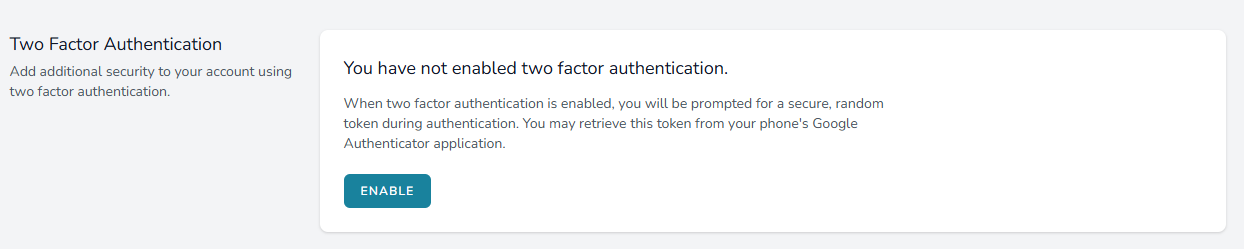
For added security, you can enable Two-Factor Authentication (2FA).
To enable 2FA:
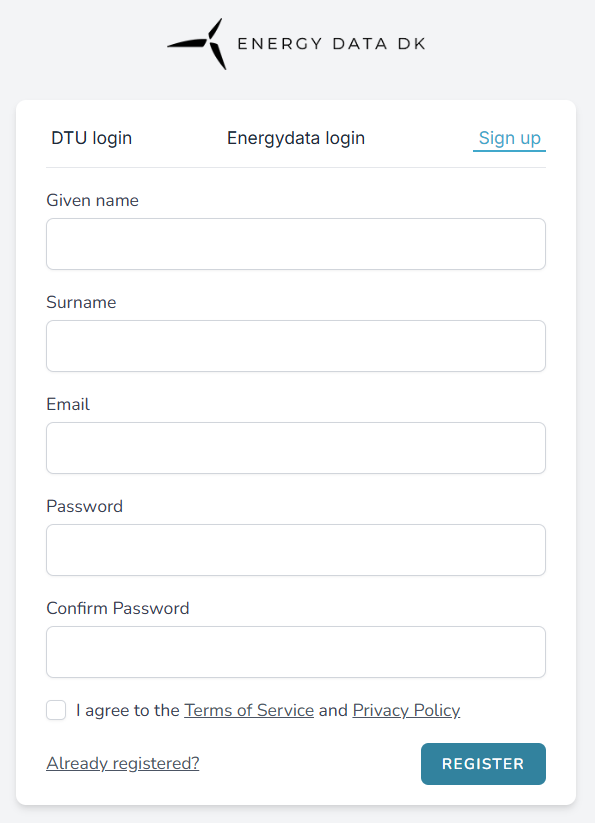
When you sign up for Energydata.dk, you are automatically granted access to all open datasets.
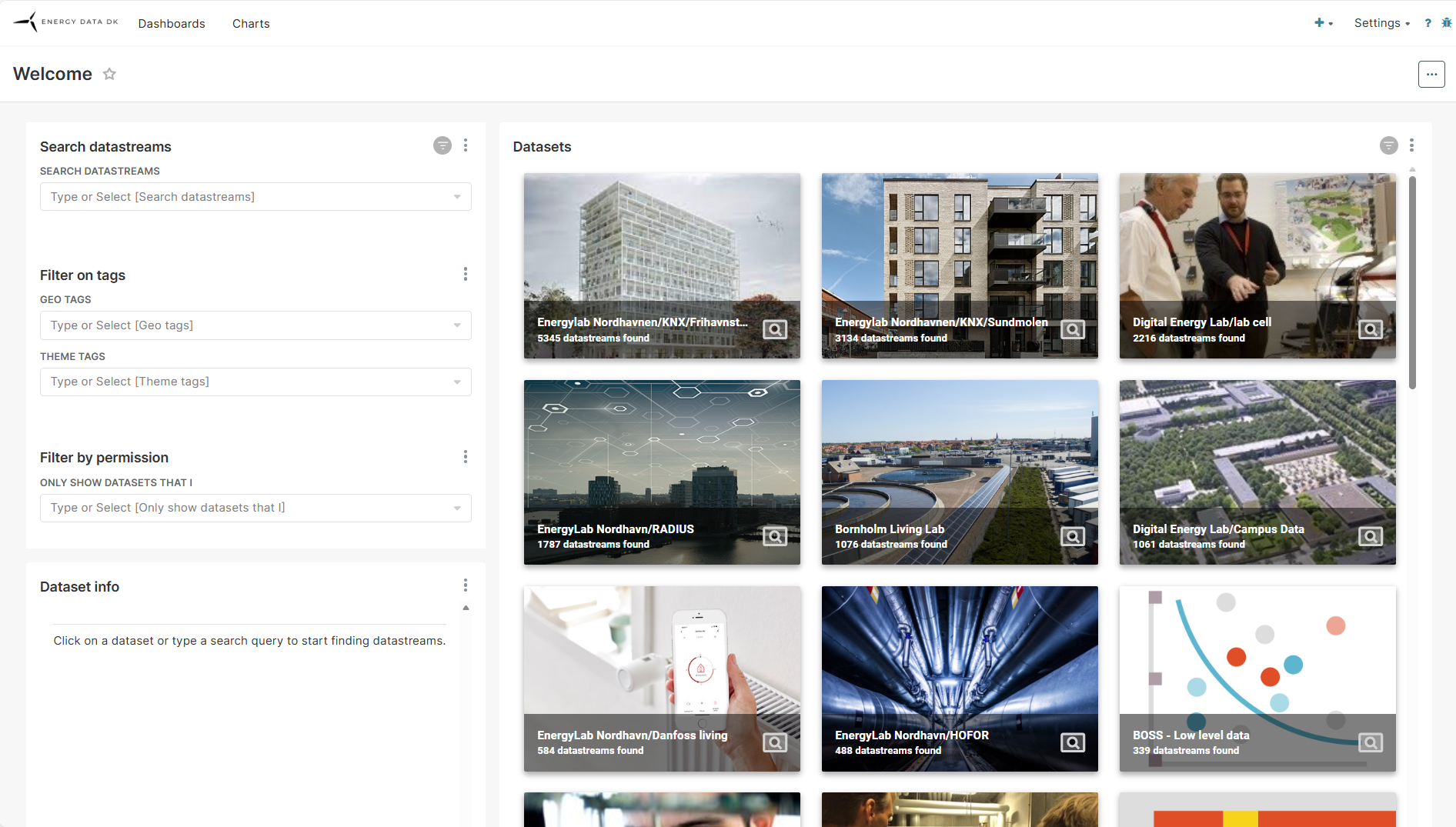
After log in you will be presented with a main page (Fig. 5). To the right you will see small graphical tiles representing different published datasets in energydata.dk.
To the left there are a few search options, that help you narrow down the datasets to the topics that interest you. They are explained below.
In the left part of the main page (Fig. 5) there is a search bar and a filtering form.
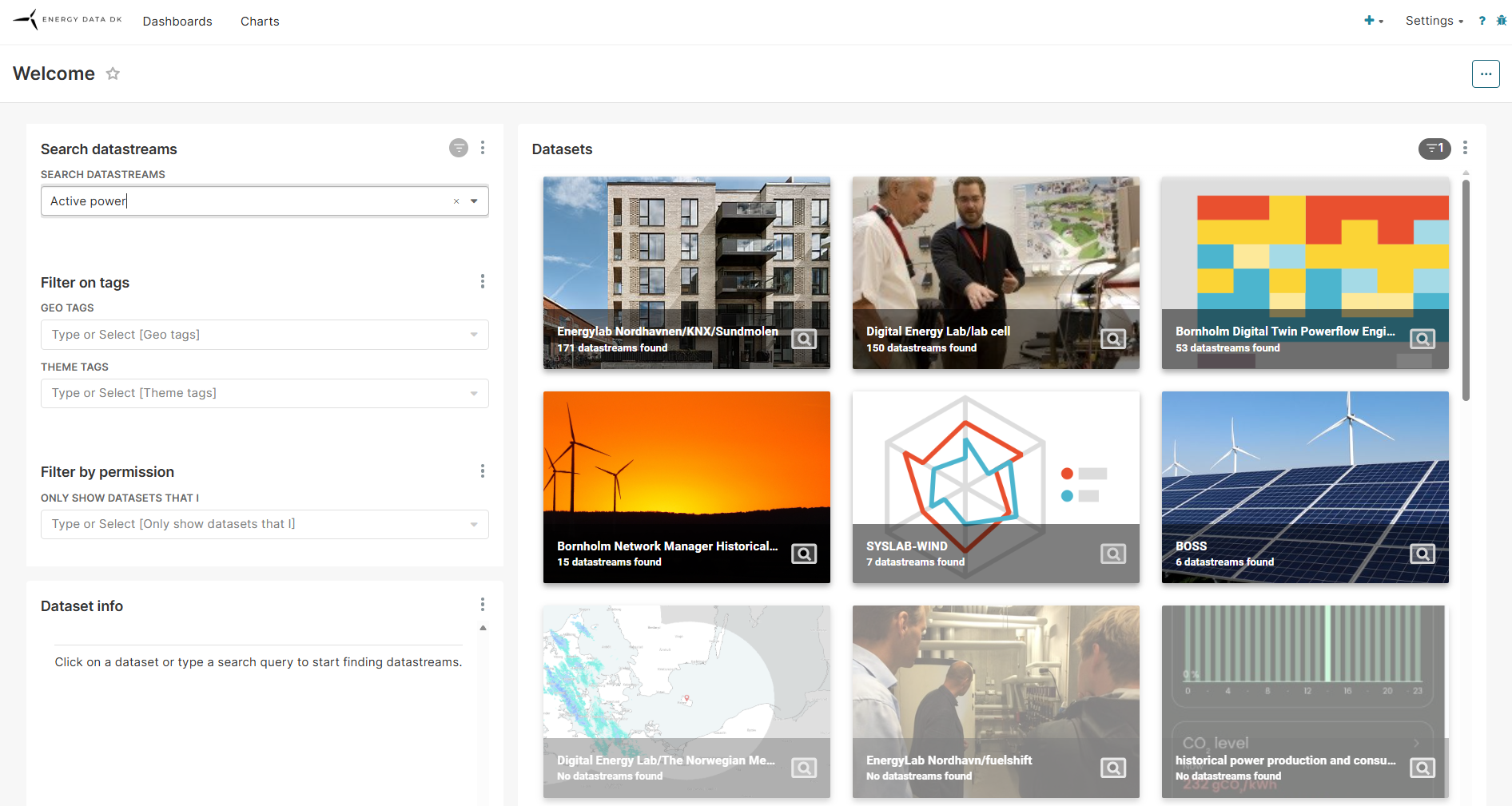
In the search bar you can enter a search string for searching a dataset. The search engine will search for a match in any part of the meta data and description of the available datasets. The search engine works like other search engines, so you can enter e.g. “Active power” and the search will find all dataset that contains datastreams with the search string in its meta data or description. The result will be displayed as number of datastreams that match the search string (Fig. 6).
In the above example there are 6 datasets that match the search. The other datasets do not contain any streams, which is indicated by their dimmed colour and “No datastreams found” written on the tiles.
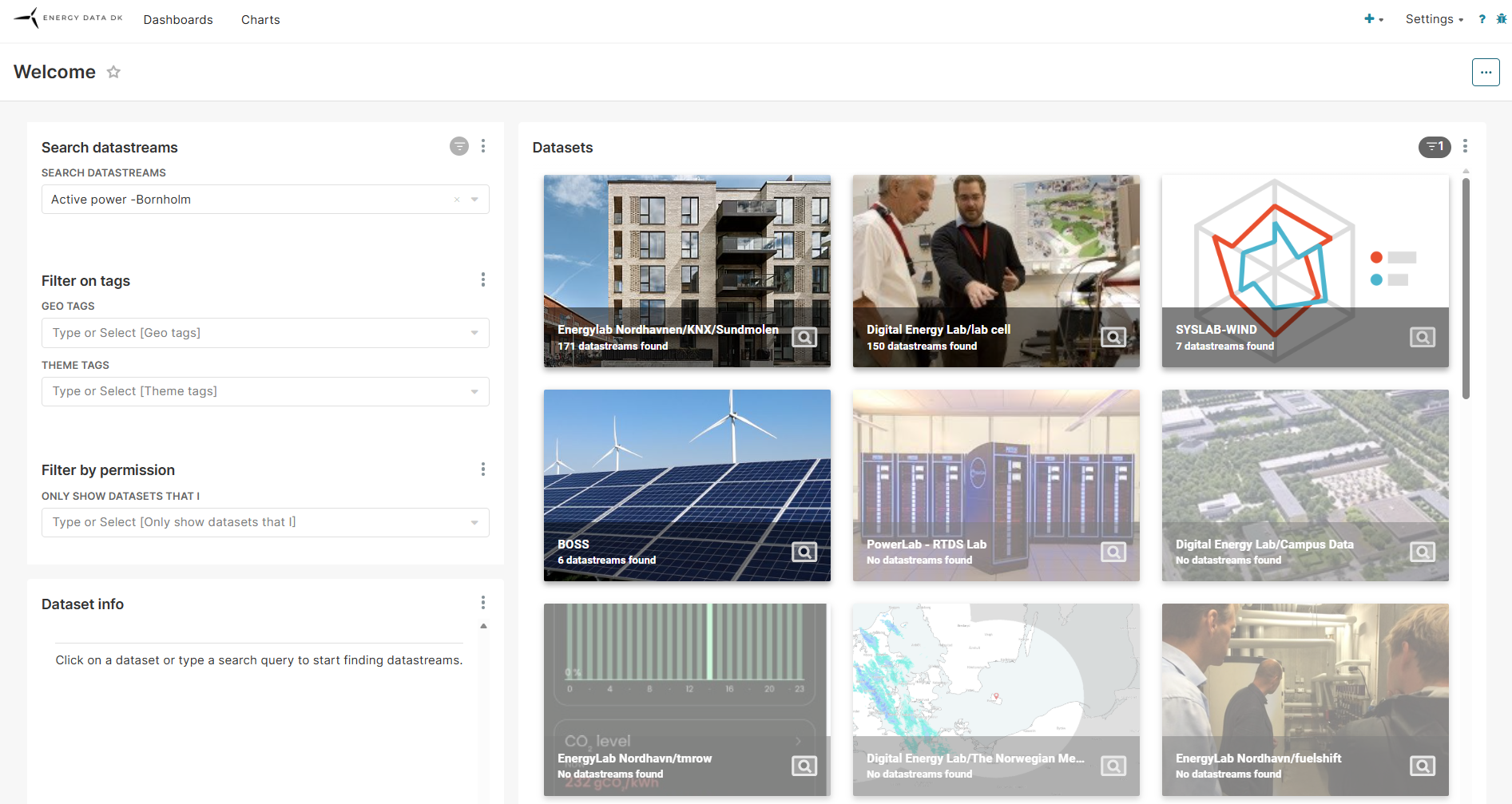
The search can be tailored by operators, e.g., you can search for “Active power” and exclude those that match “Bornholm” by entering a search string as “Active power -Bornholm”. The result of the search is shown in Figure 7.
The search now finds 4 datasets that fit the search.
Note 1:
Be aware that the search engine uses a fuzzy search algorithm meaning that it will find matches that are close to your search string but not necessarily an exact match, e.g., if you search for frequency it will also show results for fuse, because the words “frequency” and “fuse” are sufficient close to each other to make a “hit”.
Note 2:
The search is looking through description and metadata of datastreams, which are created by the data owners. It is possible, that they are not detailed enough to be included in the search.
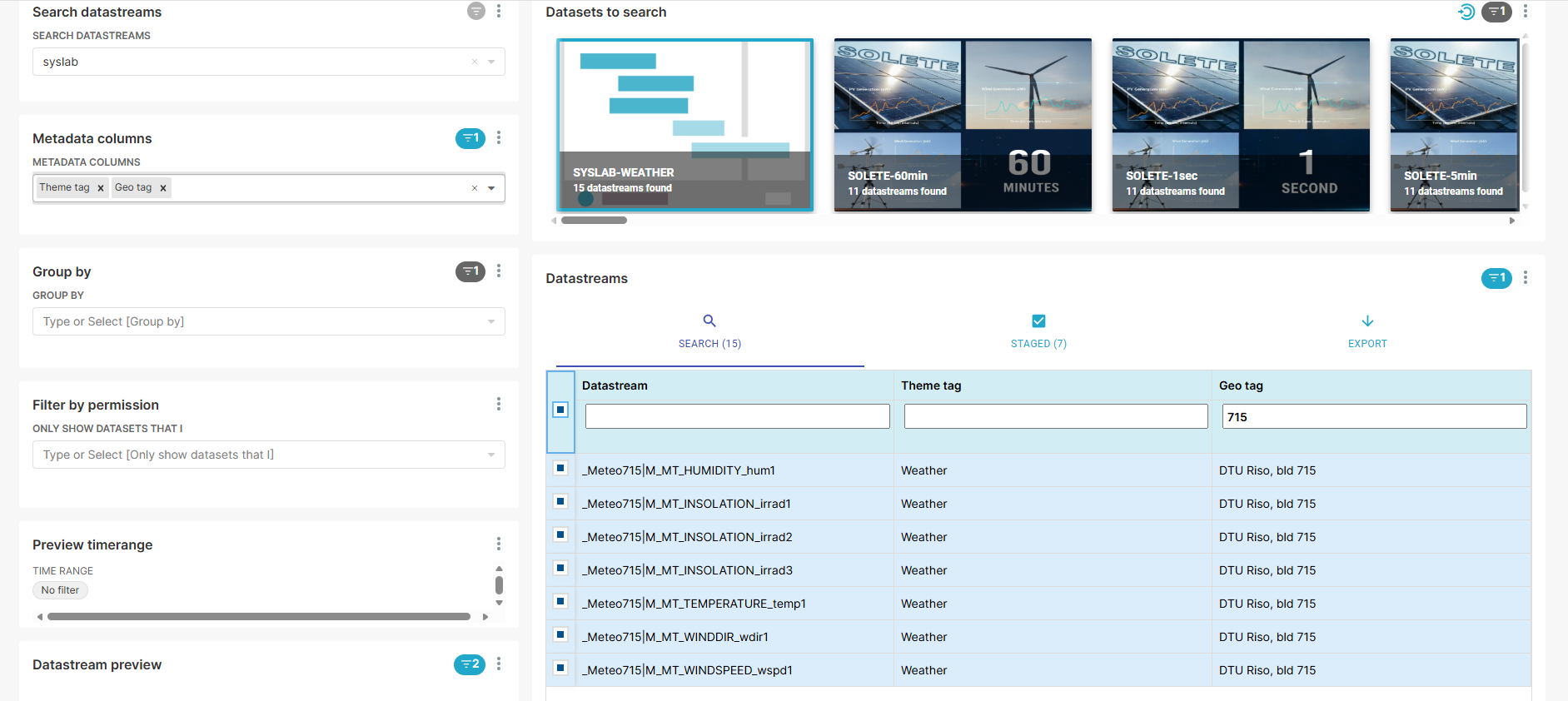
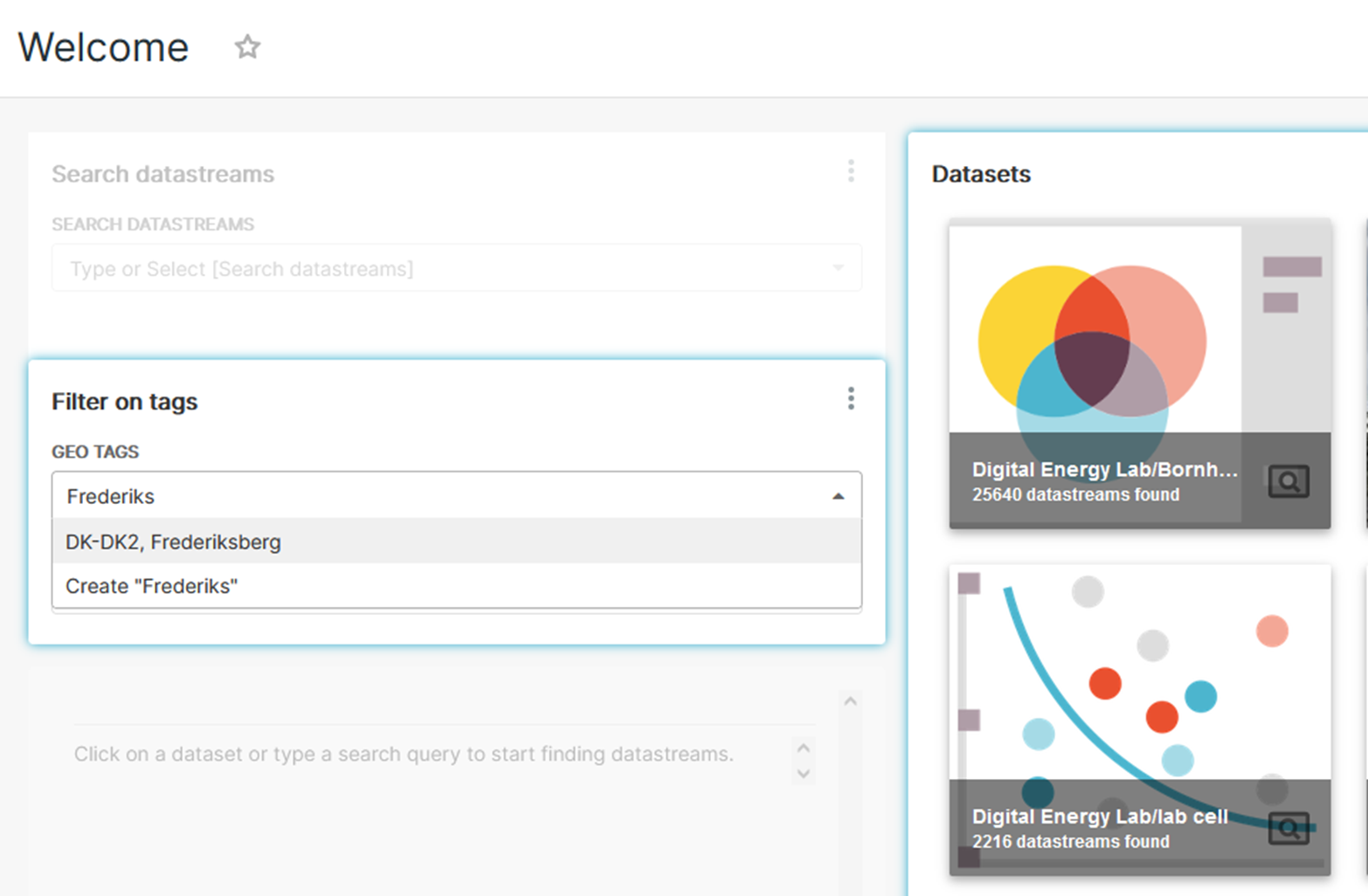
In the Filter on tags section you can apply filters to your search (Fig. 8). Only the datasets including streams that match the filter and search string will be presented.
In the Geo tags section you can enter a geographic location. The text field is a drop down presenting a list of all available geo tags. Available geo tags include all declared geo tags across all datastreams defined in Energydata.dk.
The same principle applies to the Theme tags.
The Filter by permission (Fig. 7) section allows you to narrow down the displayed datasets based on the specific access permissions you have granted (Own, Read, Write). This option helps simplify the view by excluding datasets for which you do not manage access, resulting in a cleaner, more focused page.
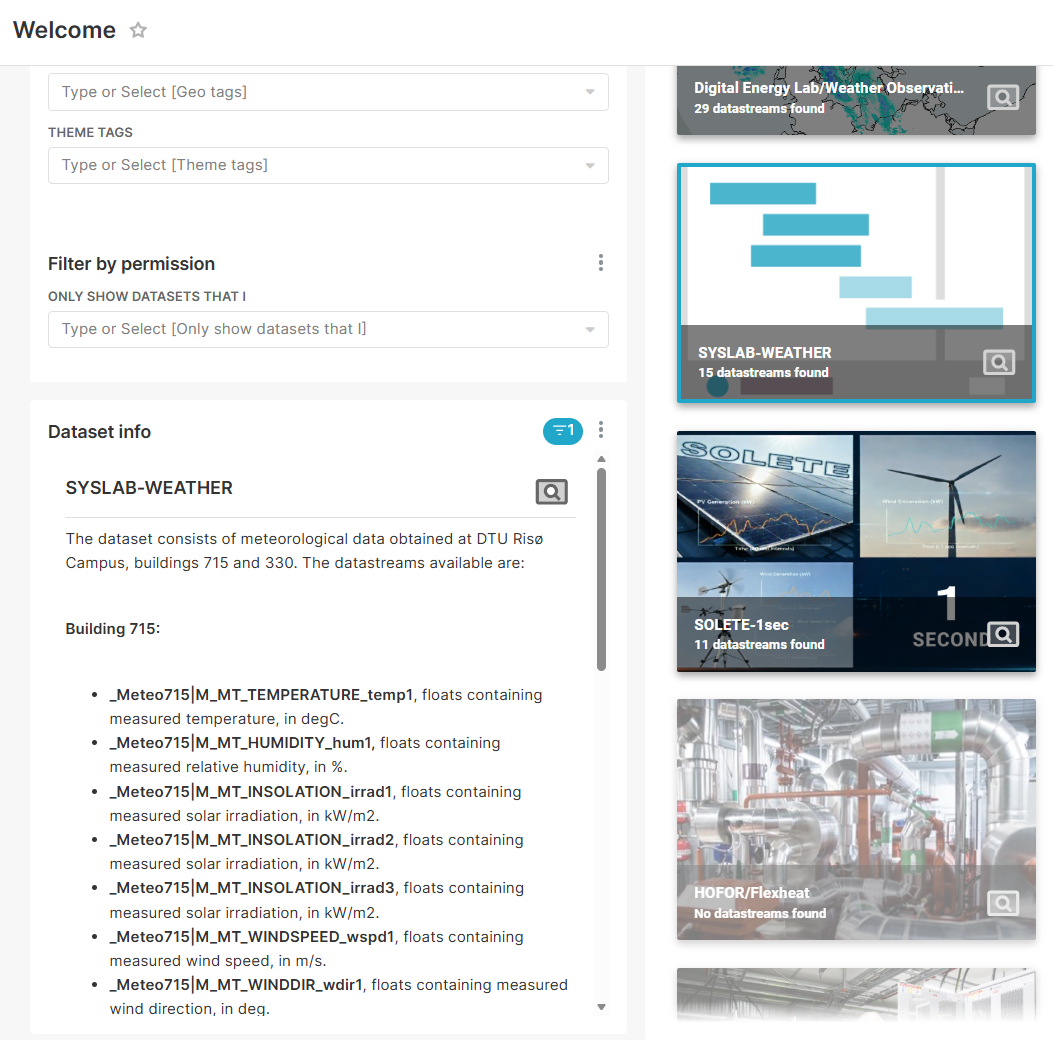
When you select a dataset, the frame around the tile will be blue and to the left you will see a description of the data (Fig. 9).
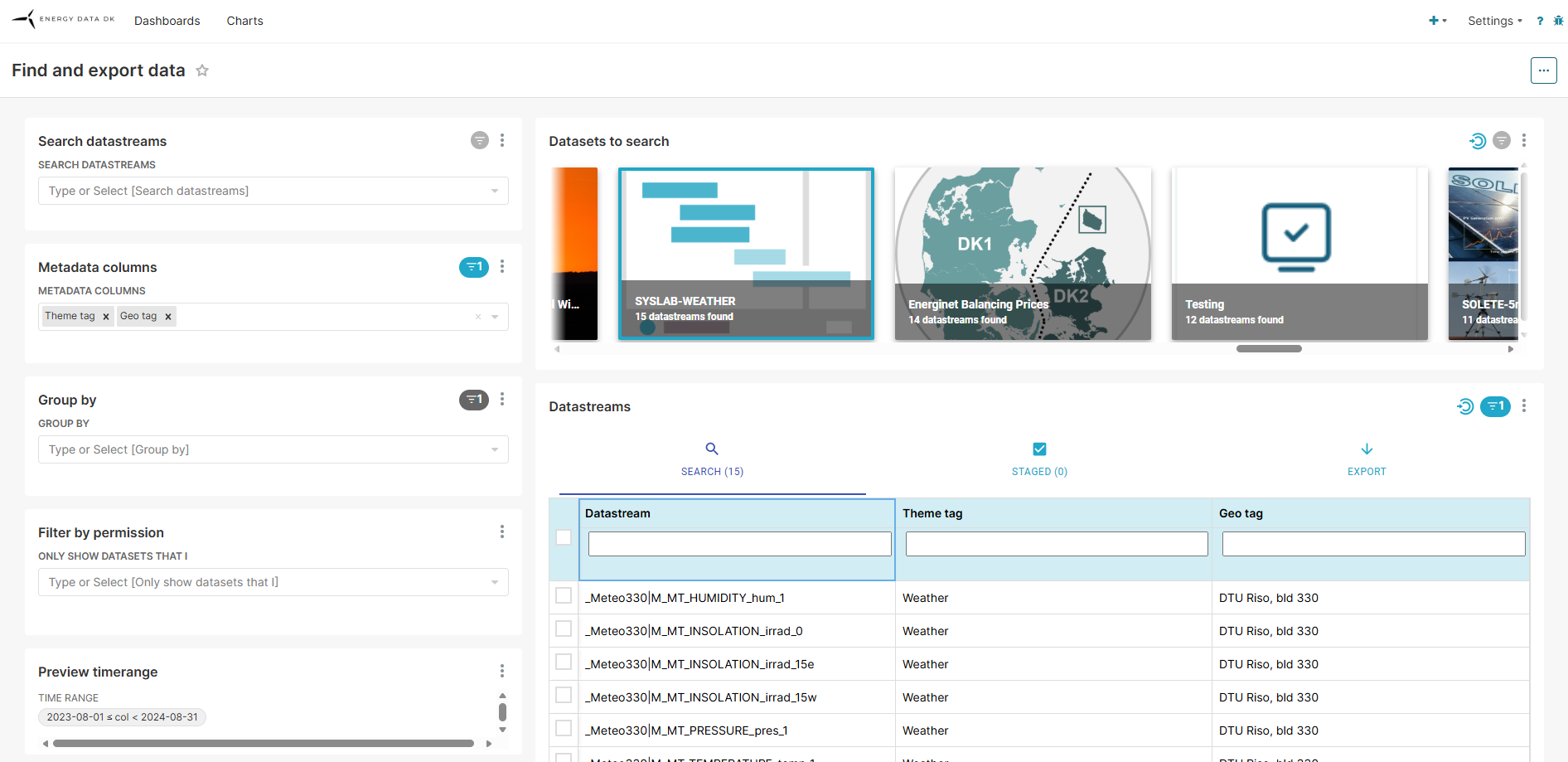
If you are satisfied with the data in the dataset, you can click on the magnifying glass in the bottom right corner of the dataset tile. By doing that, you are moved to the datastream view of the specific dataset (Fig. 10). The datastream view is where you can inspect the data and choose to download it.
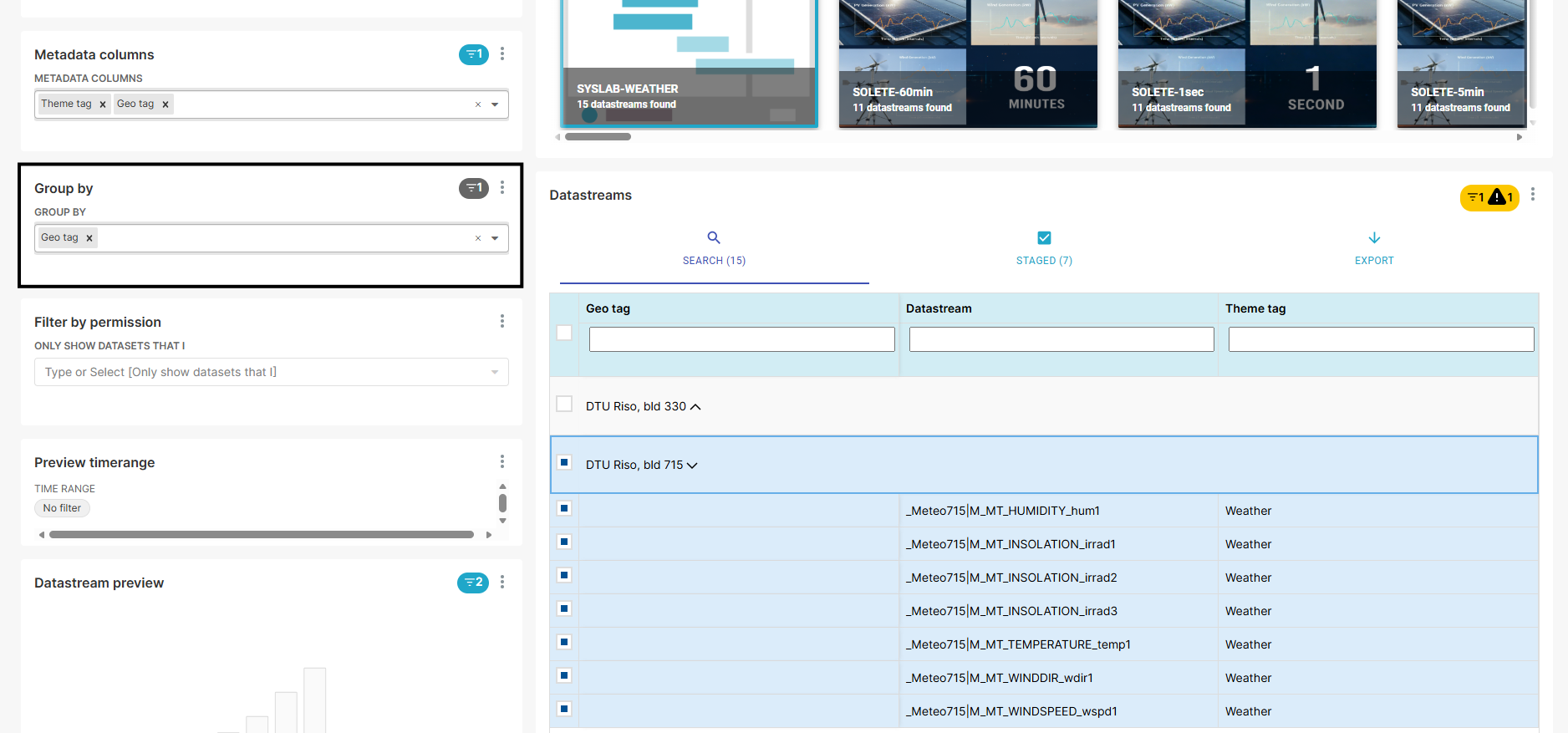
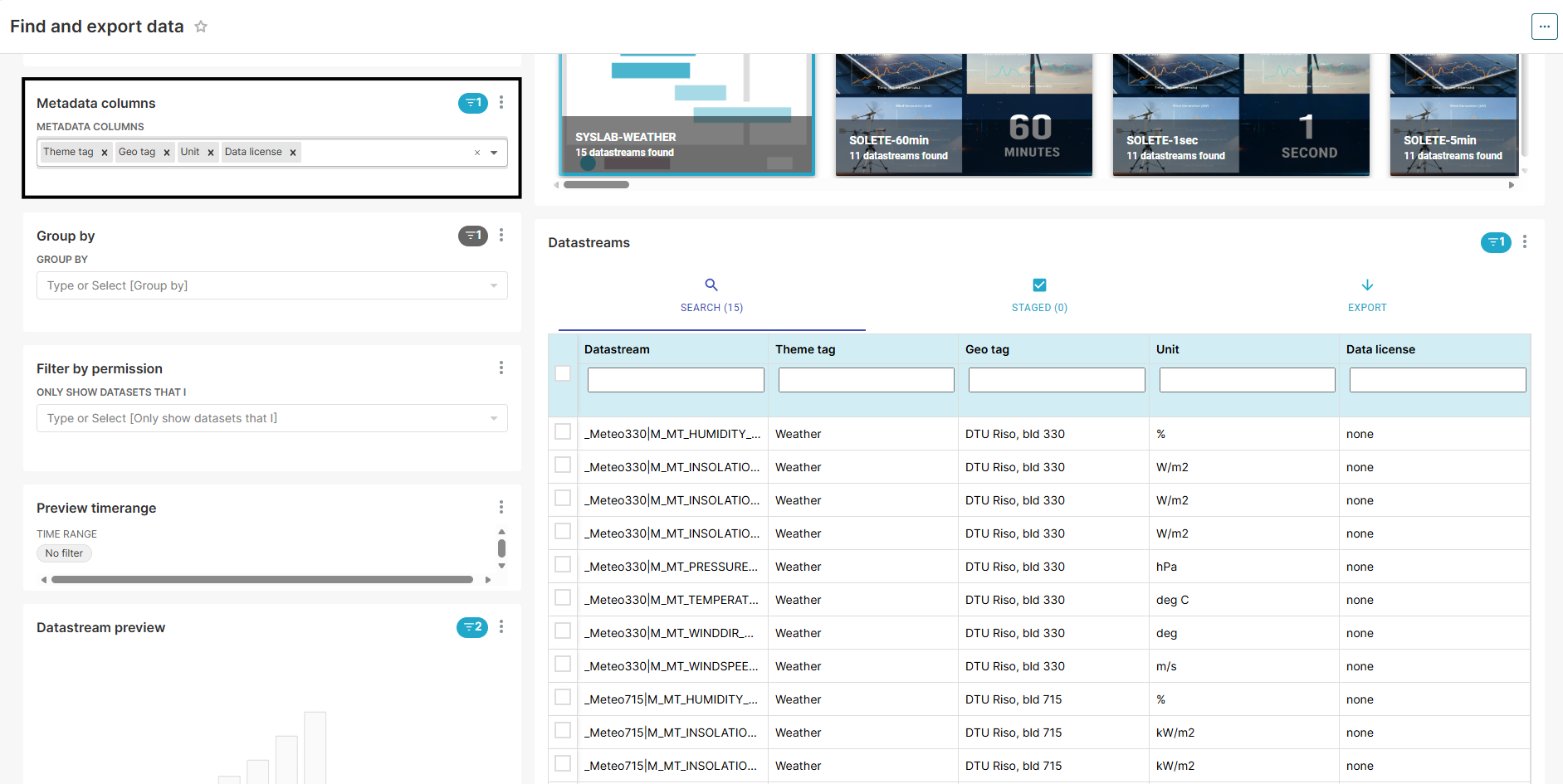
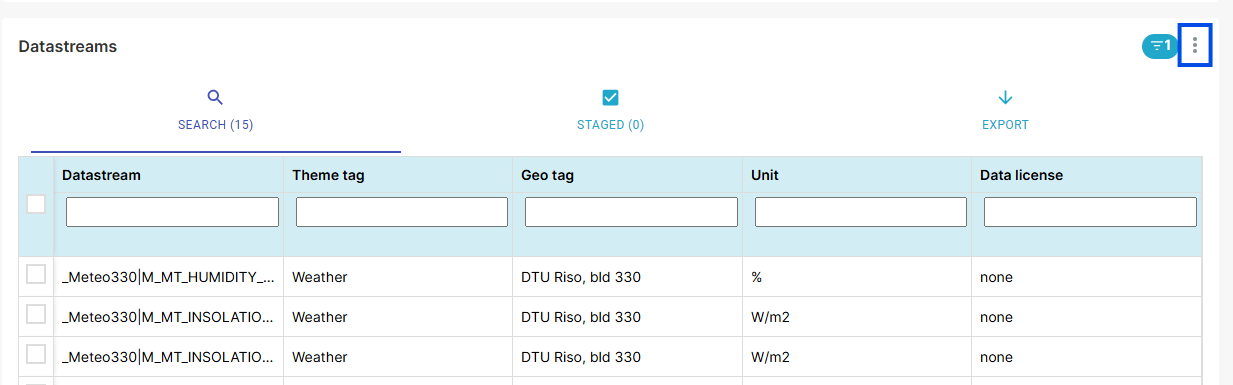
The data inspection is happening in the Search tab of the Datastream view (Fig. 10). Here you can inspect the data visually and look through metadata of the datastreams.
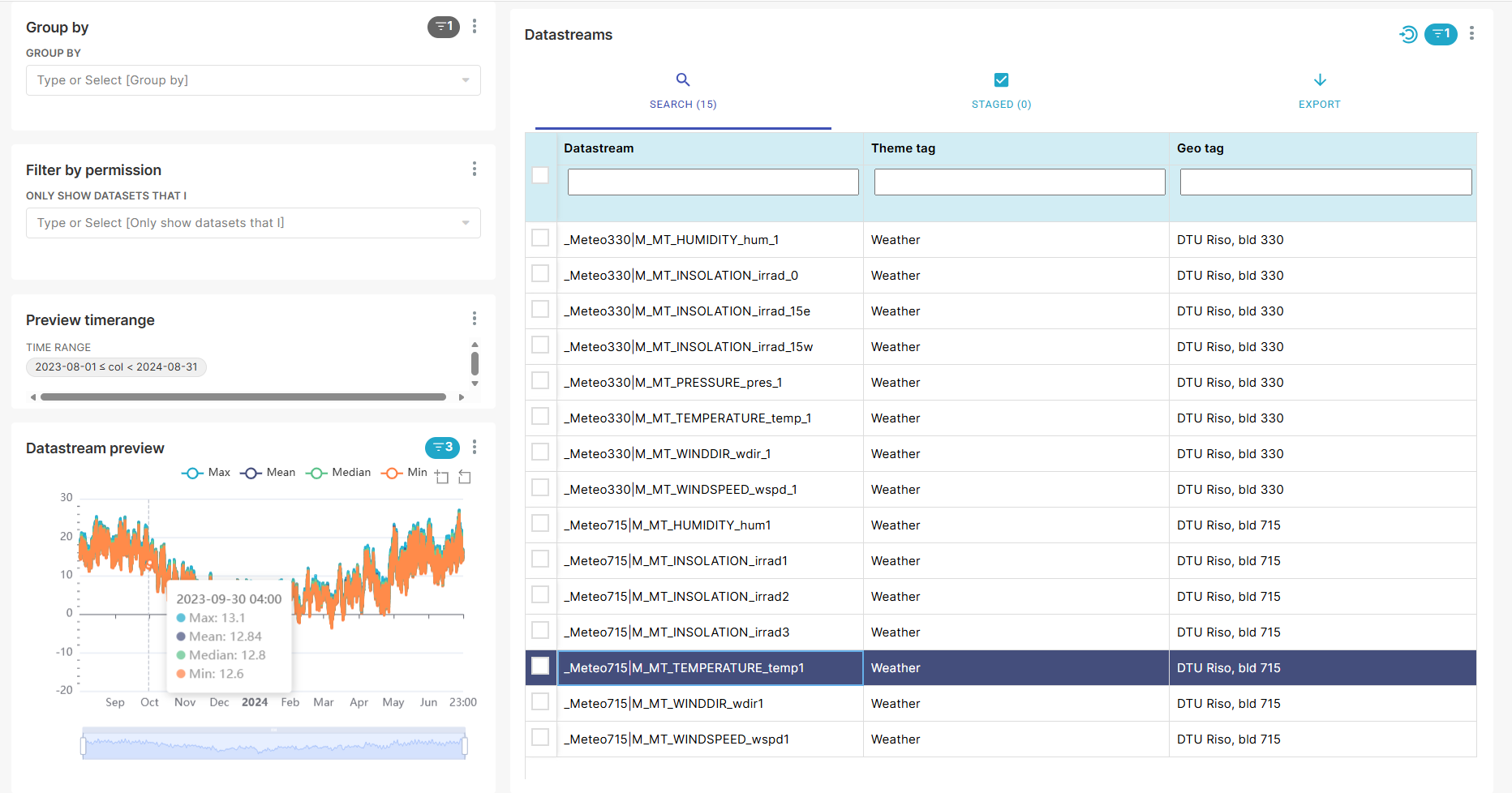
If you have access to the dataset, you can inspect each datastream in the Datastream preview window (Fig. 11) , by clicking on a specific datastream.
In the preview window you will see a plot for the:
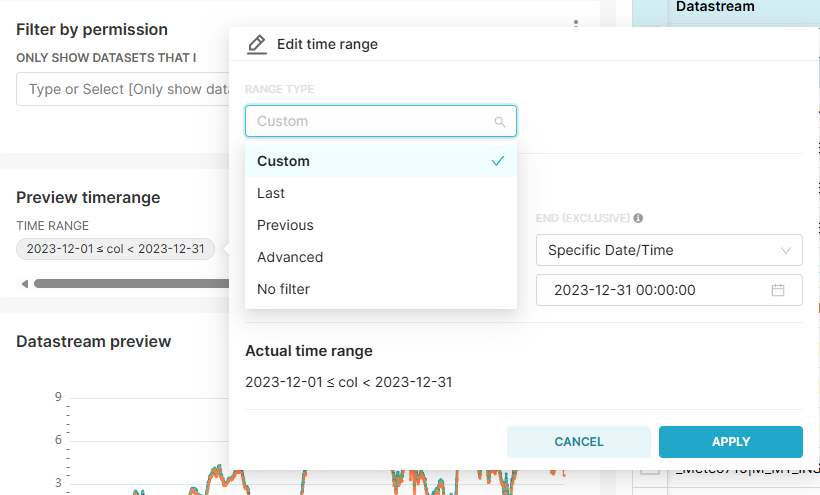
The data shows for the default time range (one week). You can select / de-select the metrics by “clicking” on the icons. The time range can be specified in the Preview timerange section (Fig. 12).
Please observe that:
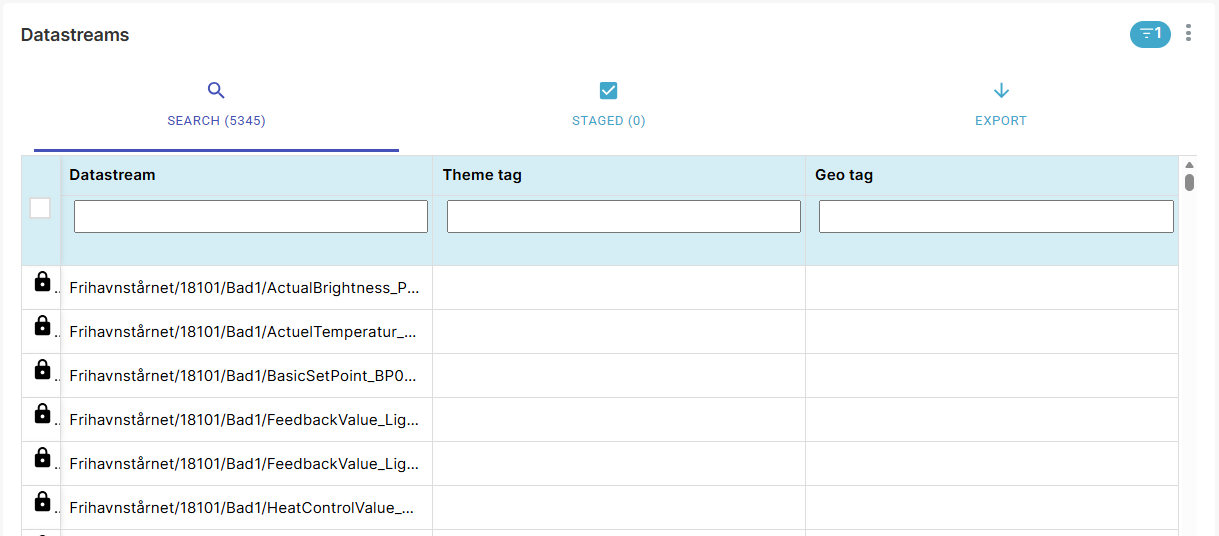
All datasets where you have a read access granted can be exported i.e., you can download the complete dataset or a subset. Read access is indicated by a tick box in the datastream window (Fig. 15a), while a “padlock” indicates no access (Fig. 18a).
Data can be downloaded directly from the website or by using the APIs.
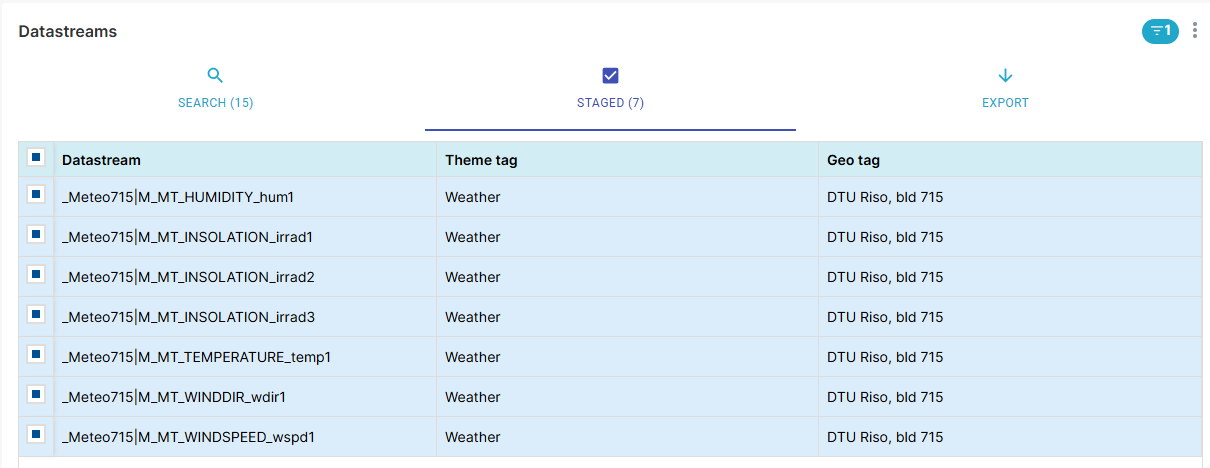
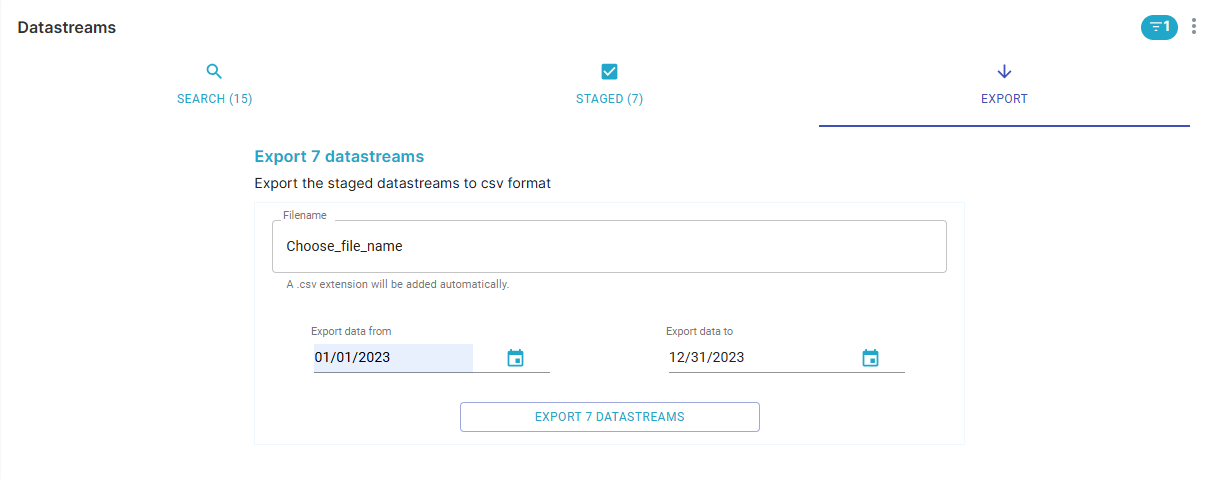
The export of a dataset results in a link to a csv file, that can be downloaded. The link is sent in a mail to the email address in your profile. You select a stream to be included in the export by check-marking the box to the left of the datastream (Fig. 15a).
Per default the export file is named “Energydata export dd-mm-yyyy HH-MM-SS”, i.e. date and time for the export. You can select another name according to your preferences, e.g., the dataset that is exported.
The export file is a csv file that is sent to your email. The file contains a column for each stream selected for the export plus a column that contains the time stamp for the observation. Each column heading is named according to this:
<datastream name>|<datastream topic>|<datastream property ID>
The “topic” and “property ID” are needed if you want to use the data APIs.
At signup to energydata.dk you are granted access to all open datasets.
Even if the datasets are openly available, they might have licensing conditions that you have to comply with. You can find these conditions in the description part of the dataset (Fig. 9) or datastream’s metadata (Fig. 13).
You are responsible for respecting these conditions.
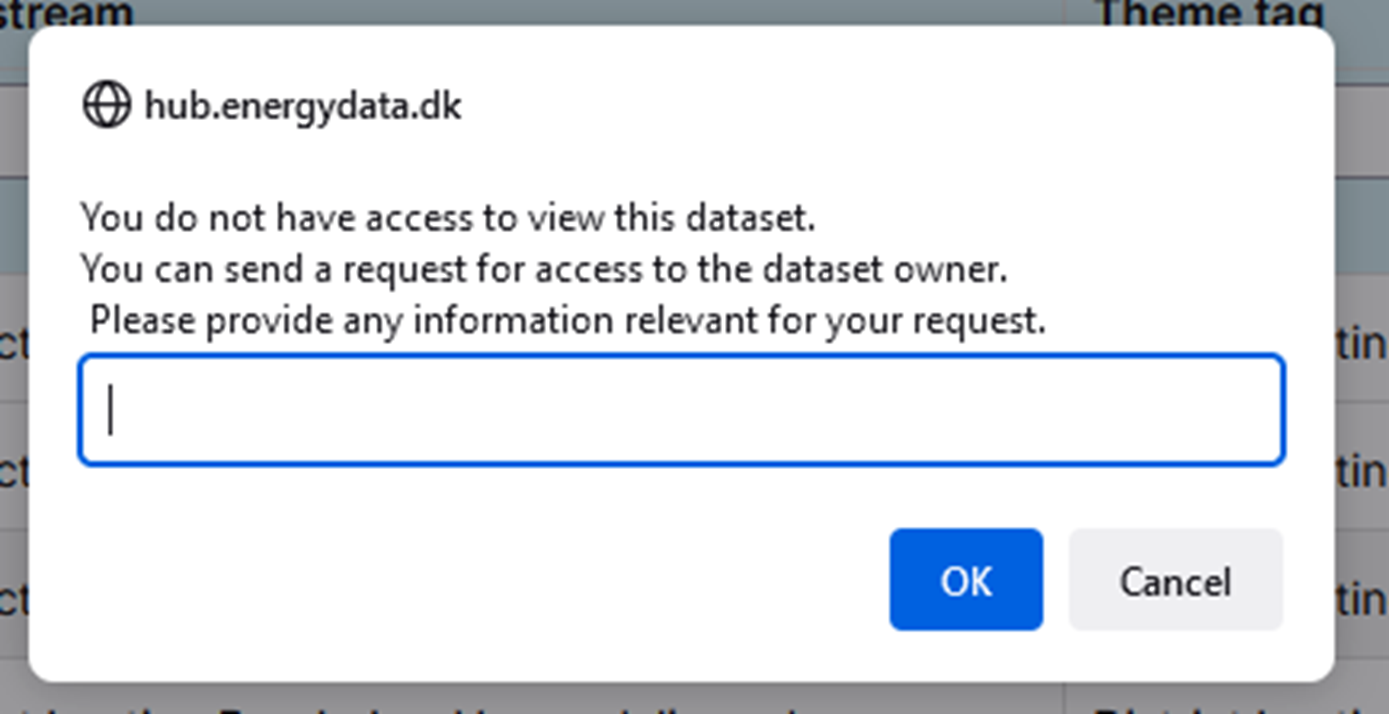
In the dataset description (Fig. 9) there should be data owner specified, so as a user, you can also email them directly and ask for permission to the dataset.